
Discounts
Order vs delivery discounts, conditions, codes, campaign windows, stacking, and picking a discount at the till.
From Discounts, Create discount. The real first question is "what am I discounting?" — the Discount type field is either Order Amount or Shipping Amount, and that choice decides everything else about the discount. Pick carefully: Discount type locks once you save, so switching later means creating a new discount instead.
Order or delivery
Order Amount reduces the order subtotal — the usual "10% off" or "Rp 20,000 off" discount.
Shipping Amount reduces or eliminates the delivery fee instead. Leave its Maximum discount blank and it's free delivery, full stop. Set a Maximum discount and it becomes a partial subsidy — it knocks that much off the delivery fee, capped, rather than wiping it out.
A shipping discount is always a fixed amount or fully free — never a percentage. If you want a percentage off, that's an Order Amount discount.
Discount value
For an Order Amount discount, pick a Value type: Percentage or Fixed amount. A percentage discount can also carry a Maximum discount — a ceiling so a big cart's discount doesn't grow past what you're comfortable with. Leave it blank for uncapped.
There's no buy-one-get-one-free here — every Kiosku discount reduces a price, it never gives away a free item.
Requirements
Two optional gates, under Requirements: Minimum order amount and Minimum item quantity. Both are checked against the cart before anything is discounted — so applying one discount can never disqualify another discount's minimum on the same order.
Codes
A discount can have more than one code — generate a batch for an event with an optional Prefix and a count under How many, or add codes one at a time. Each code has its own Uses limit: leave it blank for Unlimited, or set a number — it defaults to 1, which makes it single-use.
Campaign windows
Active dates is a switch, off by default — leave it off for an always-on discount, or turn it on to schedule a Start date and End date. Outside of dates, the discount's own Active switch (and Deactivate from the discounts list) turns it off immediately, any time, without deleting it — useful for ending a promo early or pausing one you're not ready to run yet.
Combining discounts
Combining is off by default, on both axes. Two discounts on the same order don't stack unless you explicitly turn it on for both of them.
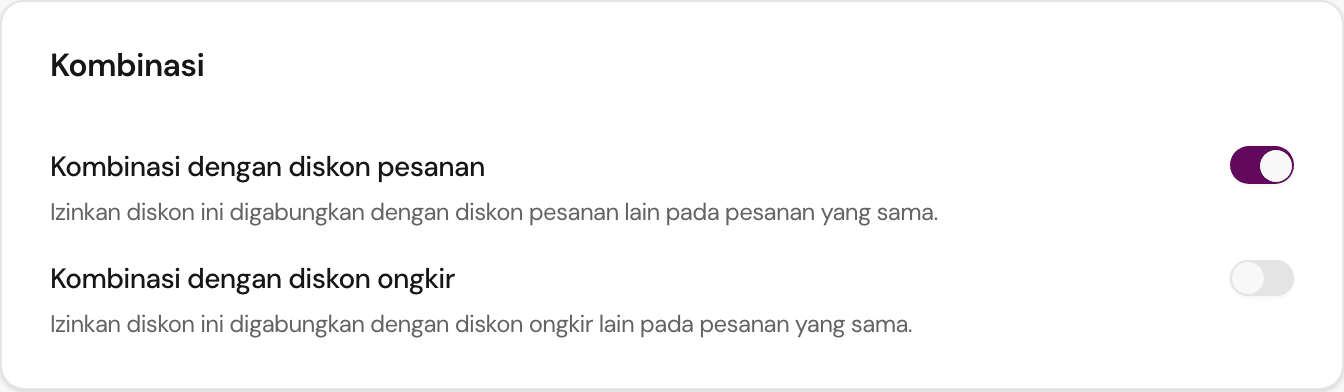
Under Combinations, a discount has two switches: Combines with order discounts and Combines with shipping discounts. A discount only stacks with another if both discounts' switches allow the other one's type — one side saying yes isn't enough. If a customer's second code can't be combined with what's already applied, checkout tells them which two codes are conflicting.
Picking a discount at the till
Building an order yourself in Chat order or In-person sale? You don't have to type a code — Add order discount lists applicable discounts to pick from directly, and Add delivery discount does the same for delivery (it only shows up once the order actually has a delivery fee to discount).
Retiring a code
Deactivate and Delete are different, and only one is safe on a code that's been used. Deactivate switches it off — it shows an Inactive badge with a Retired on date rather than disappearing, so the orders that used it keep their attribution, and you can Reactivate it later if you need to. Delete removes the discount outright, and nothing stops you deleting one that's already been redeemed — that severs the link back to the discount on every order that used it. If a code has ever been redeemed, deactivate it instead of deleting it.