
Managing orders
What the seven order statuses mean, how to edit an order, cancelling and deleting, and finding orders.
Order statuses, explained
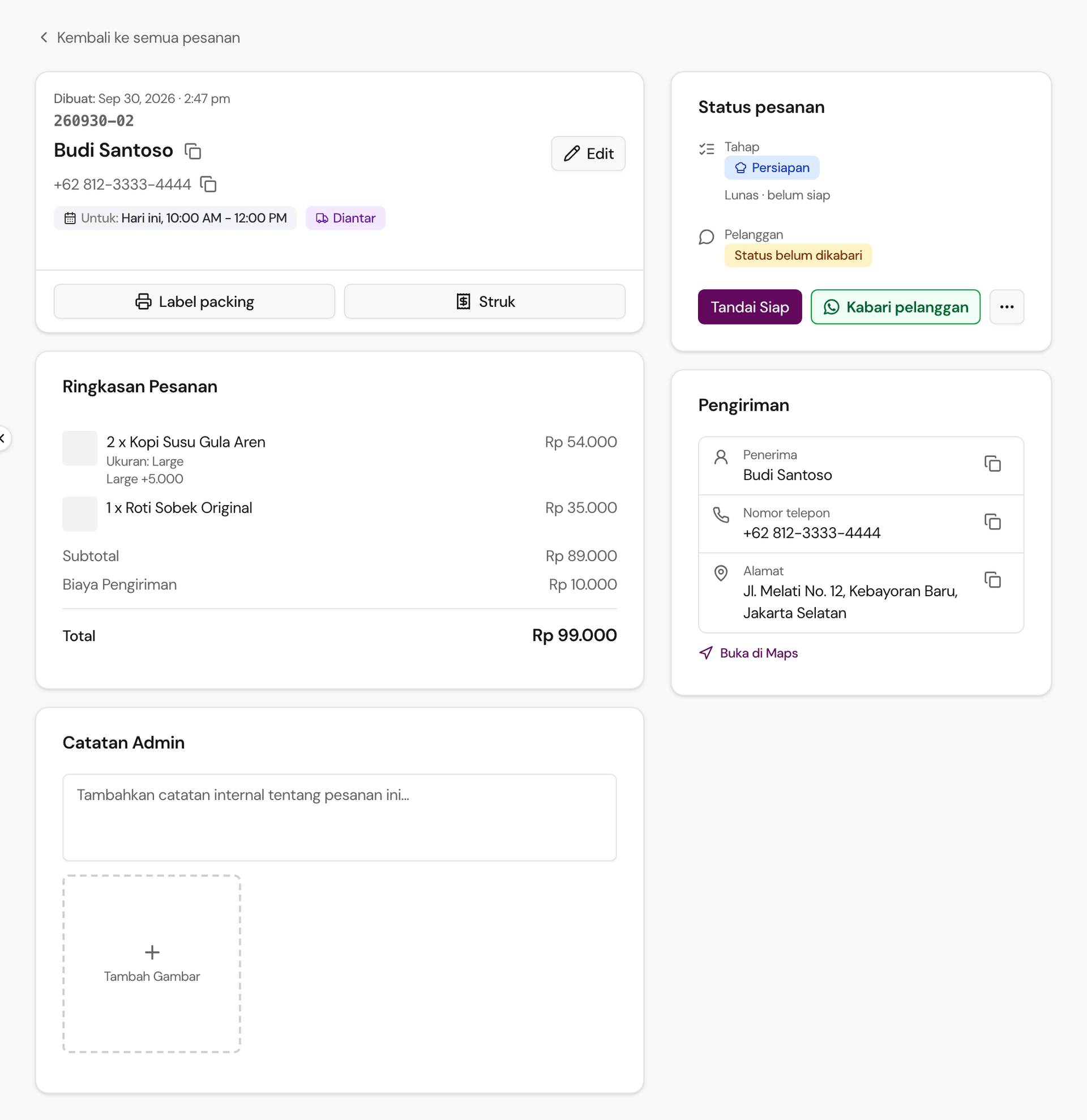
Every order carries one status that shows how far along it is:
- Draft — it's still an invoice, unpaid. You don't set this one yourself; the system creates it when you send an invoice, and moves it on automatically once the invoice is paid.
- Pending — the order's in and waiting on you to process or verify it.
- Verified — the order's been checked, whether by you (say, you've checked the payment yourself) or automatically, when an online payment comes back confirmed.
- Awaiting Pickup — it's ready, just waiting for the customer to come collect it.
- Awaiting Delivery — it's ready, just waiting to go out.
- Delivered — it's reached the customer, whether picked up or dropped off.
- Cancelled — the order's off. This can happen at any point, not just at the end.
Other than Draft, you move an order forward from the To Do page or the order page: each shows the order's next step as a button, such as confirming the order or marking it ready. For a store that accepts online payment, a confirmed payment moves Pending → Verified on its own, with no action from you. The usual path: Pending → Verified → Awaiting Pickup/Awaiting Delivery → Delivered.
Order status isn't the only status an order carries. Prep status (Todo/Done) tracks kitchen progress — it lives on the order too, and you mark it from the To Do page's Prep tab. Payment status only has two values, Paid or Awaiting payment, also separate from order status — but it only shows up when the order actually has a payment record (an online or bank-transfer payment). Orders paid by Manually Verified or cash don't show a payment status anywhere. All three are kept apart on purpose: an order marked Awaiting Delivery could already be Paid and Done in prep, or neither.
Editing an order
Open the order from your Orders list and click the pencil (edit) icon. You can change customer details (name, phone, email), how it's fulfilled (Pickup/Delivery) along with the delivery address and notes, timing (ASAP or a specific date and time slot), and order notes.
What you can't change here: the items or quantities on the order. If a customer wants something different, the safest move is to cancel the old order and create a new one.
Cancelling, deleting, and stock
To cancel, open the order, open the More actions menu (⋯), and choose Cancel order. You'll be asked to confirm — if any variant's stock was decremented when the order was placed, it's automatically added back the moment you cancel.
Once an order's Cancelled, don't move its status somewhere else again — the stock that was added back won't be taken again, so the order and your stock count will disagree. If the customer still wants it, create a new order instead.
Delete only appears, in the order page's More actions menu, once an order is Cancelled. It hides the order from your list (archiving it), not a permanent removal from the system, and it can't be undone from your side.
Finding orders
In your Orders list, there are two date filters — one for when the order was created, another for its Scheduled delivery date — plus filters for status and fulfilment (Pickup, Delivery, ASAP, Scheduled, In-person, or No Timing), and you can sort by newest, schedule, or total. The search box matches on customer name or order ID. If you need the data outside the dashboard — for a report or a reconciliation — use Export to Excel in the orders list menu. The file opens in Excel or Google Sheets with amounts as numbers, so you can sum them directly.