
Products
Adding a product, options and variants, hiding vs archiving, and organising your catalogue into collections.
Adding a product
From Products, click Add Product. The basics are Product Name, Description, and Base Price, plus up to 10 images — the first one becomes the preview shown in your catalogue and storefront.
Optional: a Compare-at Price, shown struck through next to the price to highlight a discount. It has to be higher than the base price, and it's display-only — it never changes what a customer is actually charged.
Options
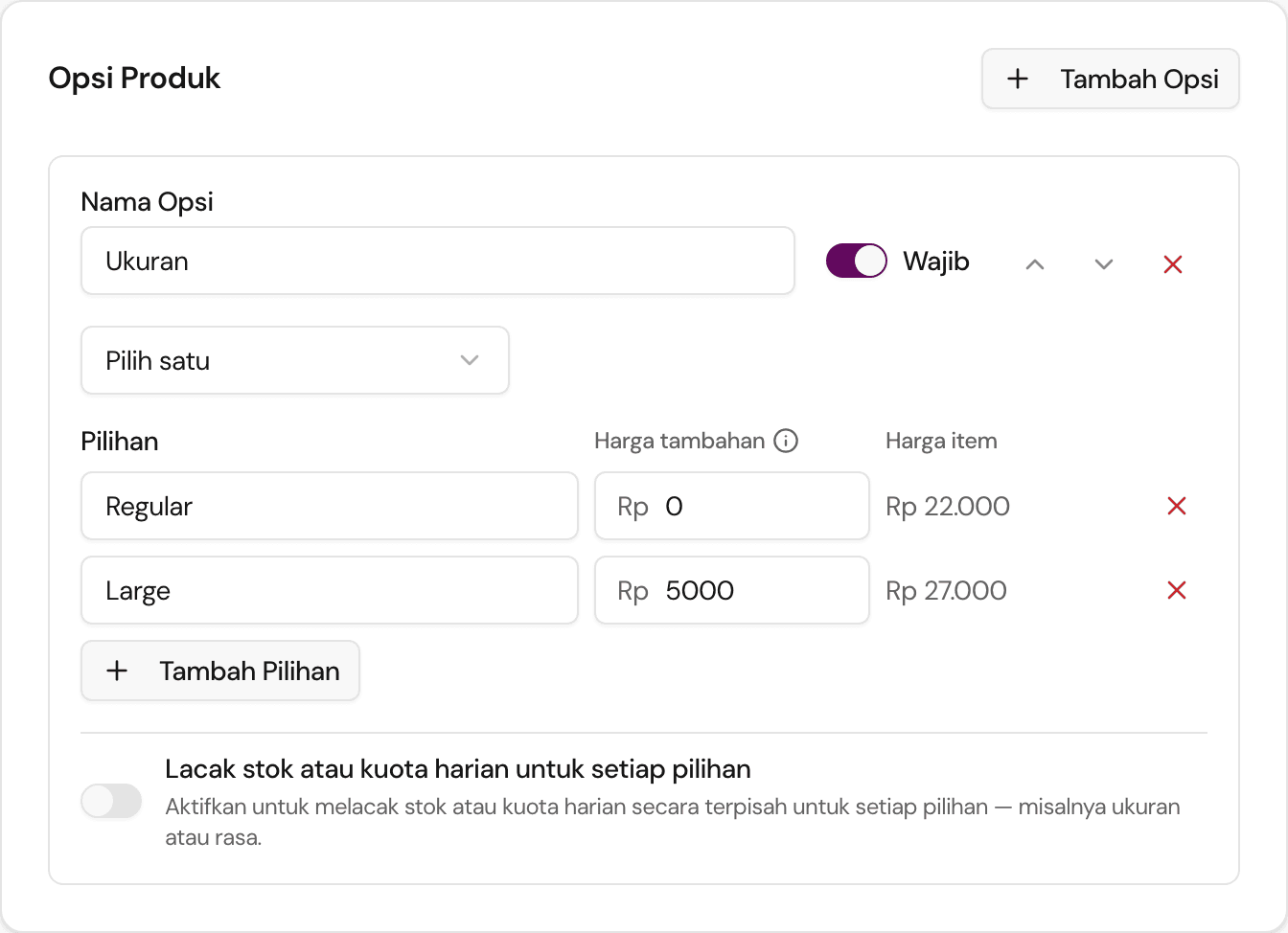
A product can have several Options — Size or Flavour, for example. Each option has a set of Values, and a Selection type that controls how a customer picks: Pick one, Choose exactly a number, Choose up to a number, or Choose any. Mark an option Required if a customer can't check out without picking one.
That's how a plain product grows sizes, flavours, or extras — sizes as a required Pick-one option, extras as an optional Choose-any option, and so on.
Turning on Track stock per choice (SKU) for an option is a separate decision: each Value becomes its own Variant, with its own SKU code and its own stock or capacity number. The Stock, capacity & limits page covers variants, stock, and daily capacity in full — this page only covers building the option itself.
Hiding vs archiving
These do different jobs, and neither one touches an order that's already been placed — a product stays attached to its past orders either way.
Visibility is your everyday switch for what's sellable right now. On the product form, it's three options:
- Active — sell in the online store and add via POS.
- Merchant only — only addable via the POS dashboard. Hidden from the online store.
- Inactive — hidden everywhere.
Flip it back to Active any time; nothing is lost.
Archive is a bigger step, for a product you're retiring for good. Archive Product hides it from your store completely and can't be added to a new order, but it stays attached to every past order it was ever part of, and you can Unarchive Product later if you change your mind.
Use Visibility for day-to-day changes — seasonal items, POS-only items, temporarily sold out. Reach for Archive only when you're done selling something for good.
Collections
Collections (under Products) group your products into labelled sections on your storefront — think "Cakes", "Drinks", "Bundles". Create one with New collection, then add products to it from the collection's detail panel.
The collections table sets what customers see and in which order: select Reorder, move collections with the arrows, then Save order; or turn off the On storefront switch to pull a collection from view without deleting it. Hidden collections move to a Hidden from storefront group at the bottom. A product not in any shown collection lands in Other on your storefront automatically — including if you delete a collection it was in.
Hiding a collection is not the same as removing it from a product. A product whose only collections are hidden ones drops off your storefront entirely — it does not fall back into Other. Only a product with no collection at all lands in Other. If you're hiding a collection to reorganise, check first whether any of its products would disappear.