
Start here
What Kiosku does, the four ways an order comes in, and what to set up in your first hour.
Kiosku is a dashboard for businesses that sell through chat — WhatsApp, Instagram DM, or however you sell. You keep selling the way you always have; orders land in Kiosku, either typed in by you or placed by the customer themselves on your store link. Every order, its status, and its payment details live in one place.
The four ways an order comes in
This is the most important section in the whole set of docs — nothing else makes sense until this clicks. There are four ways an order can land in Kiosku:
- You type it yourself — through Chat order, while a customer is chatting with you and you record what they want.
- A customer orders on your store link — they open the link, pick products, and check out themselves, with no involvement from you.
- You send a checkout link — you build the cart, the customer just fills in their details and pays.
- You send an invoice — a fixed payment link, the customer just pays, no changes allowed.
The Taking orders page walks through each one.
Your store link
Every Kiosku store gets its own link, in the form kiosku.store/your-store-name. Share it on WhatsApp, your Instagram bio, wherever. When a customer opens it, they see your product catalogue and can add to cart and check out themselves — all self-serve, no back-and-forth chat needed.
Some stores can get their own subdomain instead (yourstore.kiosku.store) — ask us if you'd like
that.
Dashboard tour
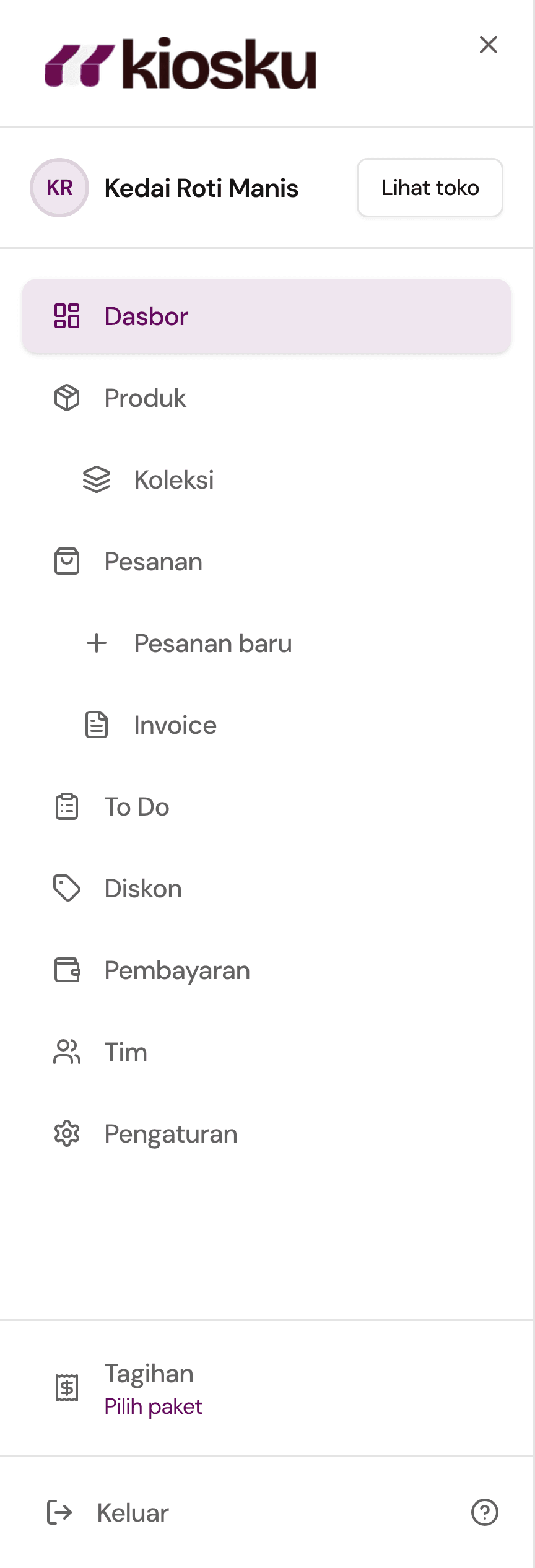
The sidebar (or the bottom bar if you're on your phone) has:
- Dashboard — an overview of your store.
Under Sell:
- Chat order — type an order in yourself while a customer is chatting with you.
- In-person sale (tagged Kiosku POS) — ring up a customer standing at your counter.
Under Run:
- To Do — today's work: confirming payments, prepping, pickups, and deliveries.
- Orders — every order you have, including Invoices (bills still waiting to be paid).
- Stock & capacity — what you can still sell each day.
- Balance and payments — how customers pay you (online payments and bank transfer), and your balance once online payments are on.
Under Set up:
- Products — your catalogue, including Collections for grouping products on your storefront.
- Discounts — your store's discount codes and promotions.
- Store settings — store details, hours, delivery, your team, and your outlets.
Guides — this documentation — sits at the bottom of the sidebar.
Orders (and Products, for owners) keep their extra pages folded away. Select the arrow beside one to show them.
Staff you add only see Chat order, In-person sale, Orders (including Invoices), To Do, Stock & capacity (to adjust and count stock), Notifications (to turn on order alerts on their own device), and Guides in their menu — enough to take and prep orders day to day.
First-hour checklist
The order that makes the most sense for a new store:
- Fill in your store details — name, location, contact.
- Add your first products — name, price, photo.
- Set how customers get their order — pickup, delivery, or both.
- Set your opening hours.
- Share your store link.
Once these five are done, your store is ready to take its first order.