
Taking orders
How to type an order yourself, send a checkout link, send an invoice, and what happens when a customer orders on your link.
There are four ways an order comes in (see Start here). This page walks through each one — the question you usually have is "which one do I use?", not "how does it work?".
Typing an order yourself
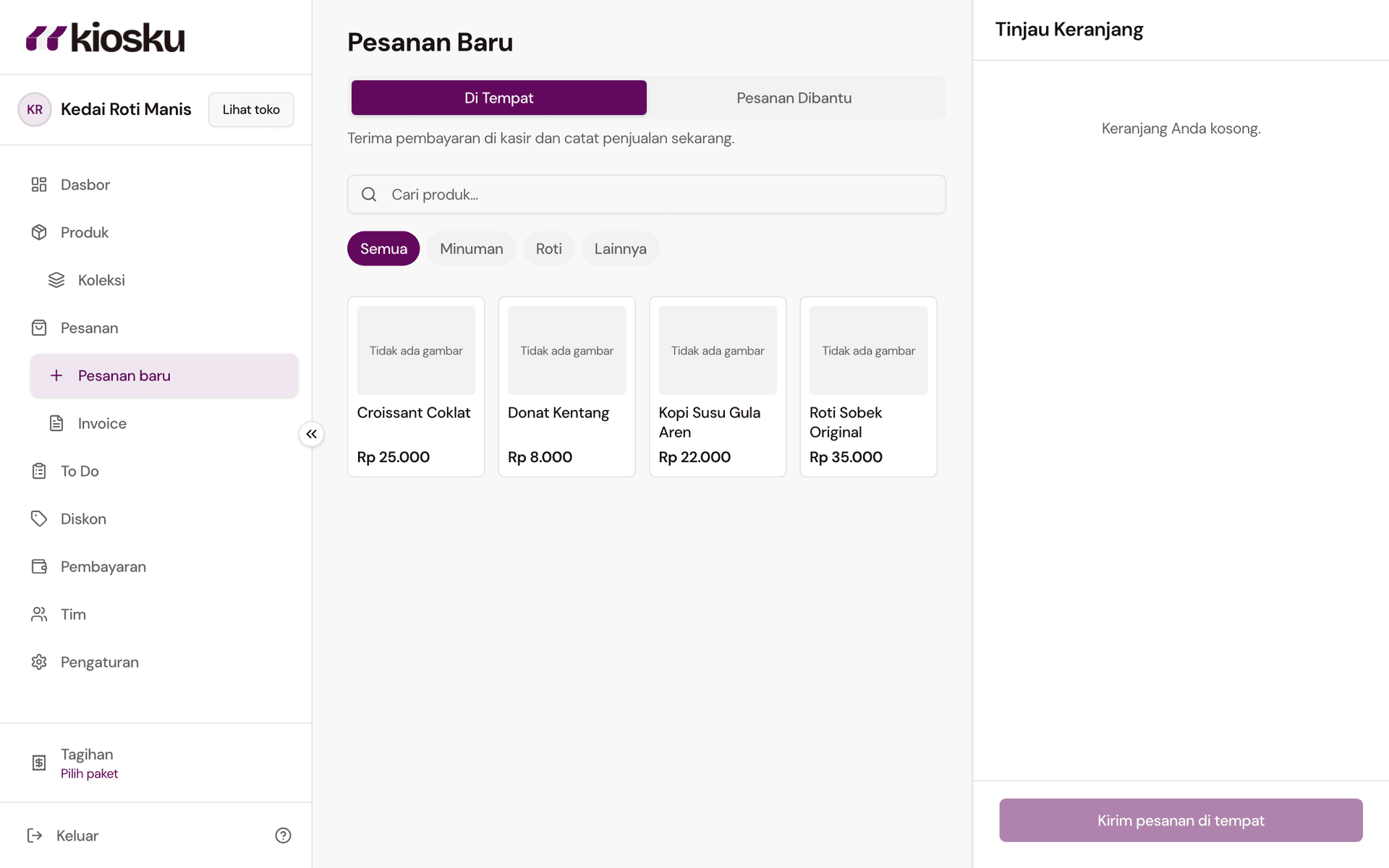
Under Sell in the menu, open the page that matches how you're handling this order:
- Chat order — the customer is messaging you: you send them a checkout link, or fill in their details yourself right now.
- In-person sale (tagged Kiosku POS) — the customer pays and picks up right at the counter; the order is recorded the moment you submit it.
Then search for products and add them to the cart — if a product has options (size, flavour, and so on), you'll be asked to pick first; anything marked Required has to be chosen before it can be added.
Once the cart's ready, tap Proceed to Checkout to open the order panel — titled Review Cart for In-person sale or Create Order for Chat order. If you're filling in the details yourself: enter their name, phone number, and how they're getting the order (Self pick-up or Delivery — elsewhere in the dashboard, like the Orders filter, you might see the shorter Pickup, same thing). For payment, you can mark it Manually Verified (say, already paid in cash or a transfer you've checked yourself), choose Bank Transfer and upload proof of payment, or send it as an invoice (see below). Submit, and the order appears straight away in your Orders list, where its status takes over from here.
Sending a checkout link
If you don't want to fill in every customer detail yourself, open Chat order → Send checkout link. You still build the cart, but the customer fills in their own name, address, and payment through the link you send them — good for when you want the customer to pay themselves without you having to chase it manually.
Sending an invoice
An invoice is a fixed payment link — the customer just pays, they can't change what's in it. Choose Send invoice for payment while filling in the order details. This doesn't create a live order yet: it appears under Invoices, marked Awaiting payment, until the customer pays (or you mark it Mark as paid yourself). Once it's paid, the order moves automatically into your Orders list.
When a customer orders on your own link
A customer can open your store link at any time without you doing anything at all — browse, add to cart, check out, and pay, all on your storefront. That order shows up in your Orders list automatically the moment it's placed, just like any other order.
How the customer pays depends on which payment methods your store has turned on. Bank transfer has its own Show at checkout switch under Balance and payments → Bank transfer — turn it off and customers stop being offered it at checkout, while your account details stay saved for in-person and invoice orders. Some stores also accept online payment; ask us if you'd like it switched on.